 Price Firewall
How to use Price Firewall
A step-by-step guide for merchants. Example amounts are in US dollars; the app uses your store currency.
Getting started
- Install or open Price Firewall from your Shopify Admin. The first catalog sync reads your prices in the background and changes nothing.
- Choose Free or Pro. Free is alert-only; Pro adds automatic rollback. See pricing.
- Go to Settings.
- Enable Protection.
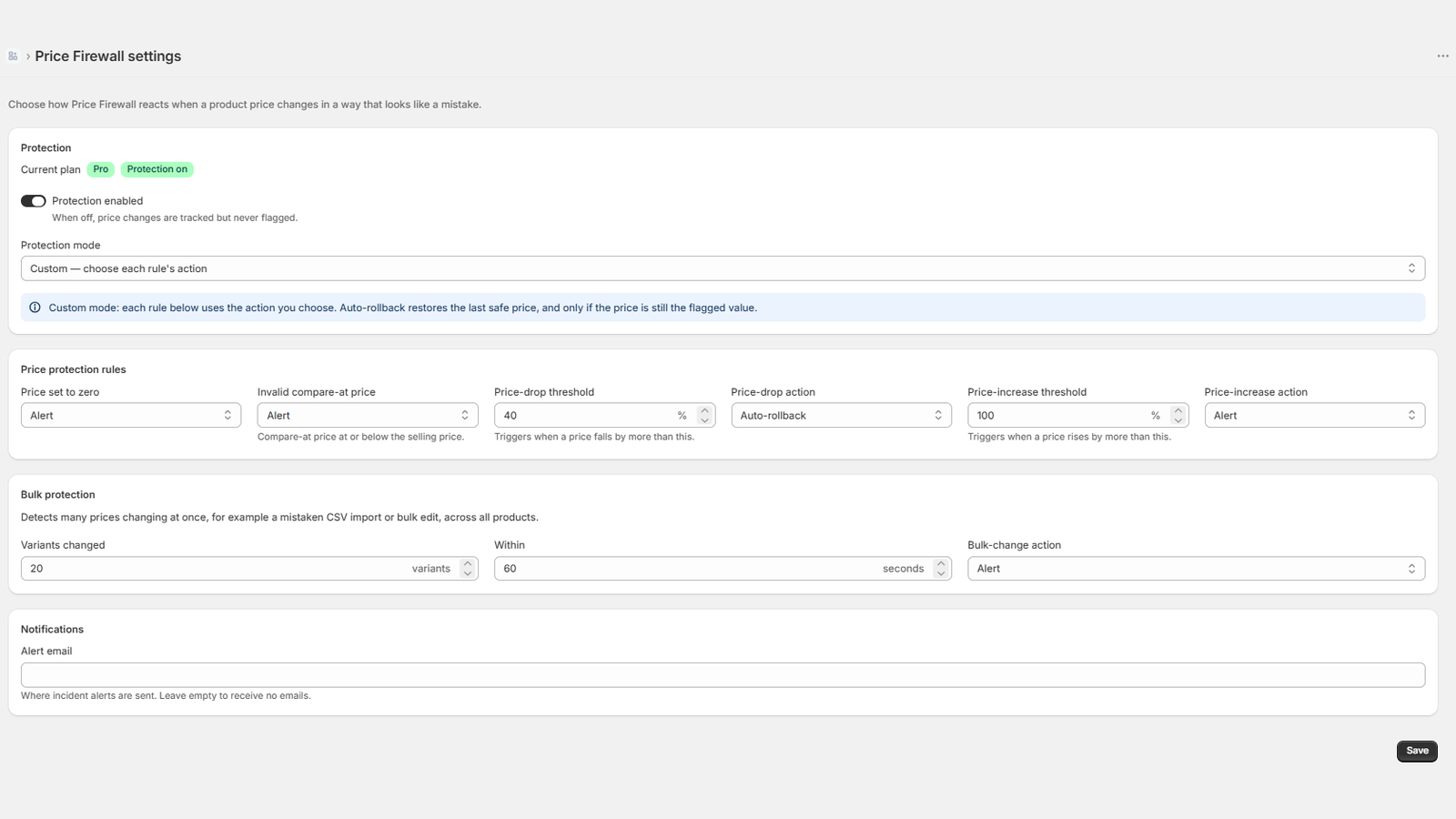
- Choose Safe, Protect or Custom. Protect and Custom need Pro.
- Configure the alert email under Notifications.
- Review Incidents whenever you receive an alert.
Understanding the safe price
The safe price (and safe compare-at price) is the last price Price Firewall considers valid. Every new price Shopify reports is compared with the safe price, not with the previous raw price. After install, the catalog sync makes your current prices the safe prices.
- An alerted price becomes the new safe price. The detected price is accepted as the new baseline, and the price stays as changed.
- A later price change is evaluated as a new change, against that new safe price.
- “Mark current prices as safe” deliberately resets the baselines to the prices currently in Shopify.
- When Protection is off, price changes are accepted as new safe prices and are not reviewed retrospectively.
- An automatic rollback does not change the safe price: it restores it.
- New variants become baselines and are never flagged.
Safe, Protect and Custom modes
Safe mode
Available on Free and Pro. Price Firewall detects, logs and alerts. It never automatically restores a price.
Protect mode Pro
Automatic protection with fixed, recommended settings that replace any per-rule choices when saved:
- Zero price and large price drop (more than 40%) → Automatic rollback.
- Large price increase (more than 100%), invalid compare-at price and bulk changes → Alert.
Custom mode Pro
You set the thresholds and choose an action for each rule: Ignore, Alert or Automatic rollback. Ignore records no incident and the new price simply becomes the safe price. Rolling back bulk changes is opt-in: choose Automatic rollback explicitly for the bulk-change rule (Protect mode only alerts on bulk changes).
Rule examples
| Rule | Triggers when | Example |
|---|---|---|
| Price set to zero | The price becomes exactly 0. | $49 → $0 |
| Large price drop | The price falls by more than the threshold (default 40%). | $100 → $50 |
| Large price increase | The price rises by more than the threshold (default 100%). | $80 → $200 |
| Invalid compare-at price | The compare-at price is at or below the selling price. | Price $60, compare-at $50 |
| Bulk price changes | Many variants change within the time window (default 20 in 60 seconds). | An import reprices 50 variants |
Thresholds are strictly “greater than”. A zero price is handled only by the zero-price rule. See Features for details on every rule.
Automatic rollback
Requires Pro, protection on, a mode other than Safe, and the rule set to Automatic rollback. Example in Custom mode:
Detected price: $200
Rule: Large price increase
Action: Automatic rollback
Result: price restored to $80
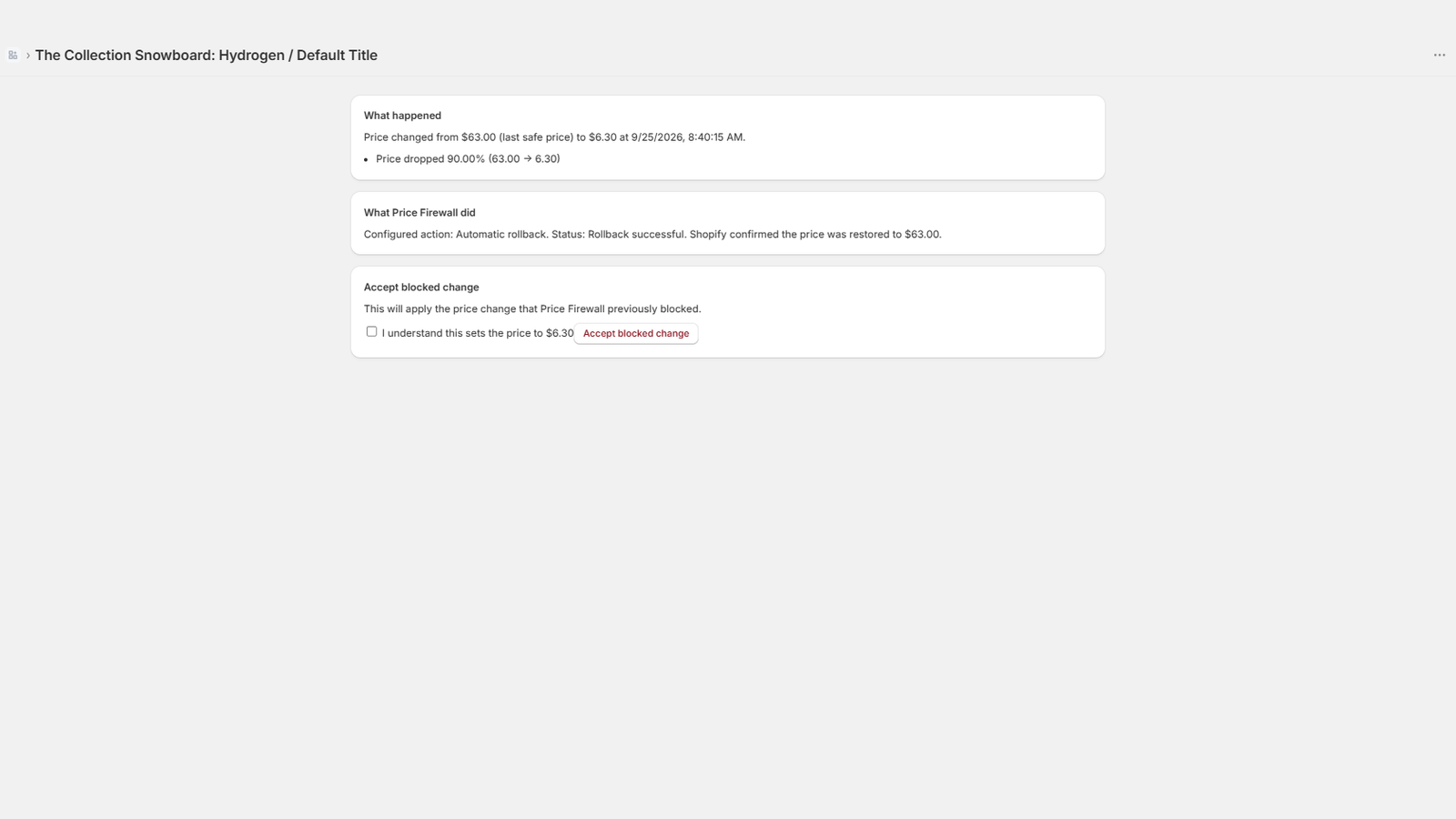
Before restoring, Price Firewall re-reads the live price and skips the rollback if it changed again, so a newer price you set is never overwritten. The restore is successful only when Shopify confirms both the price and the compare-at price.
Incidents
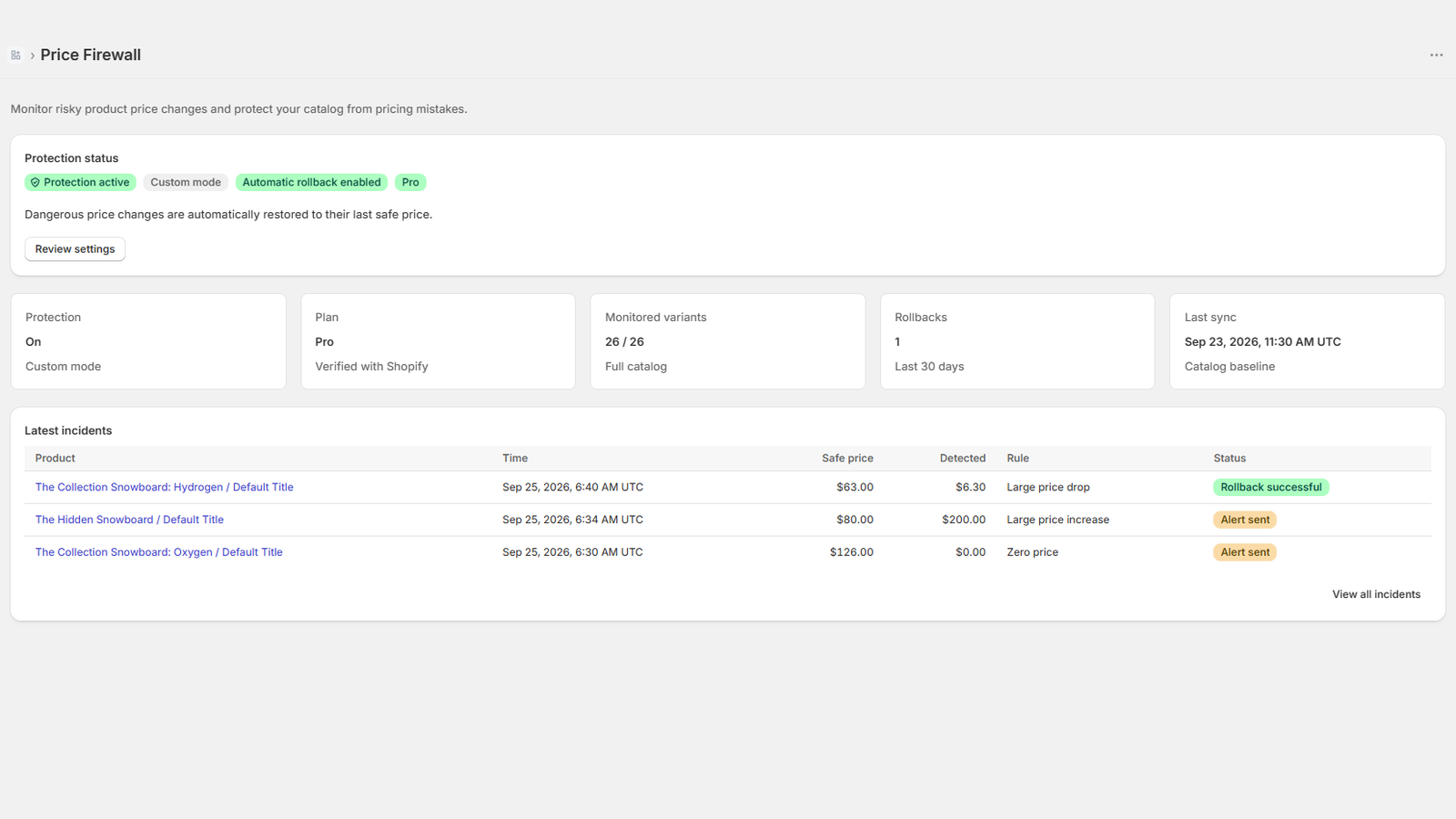
Each incident shows the safe price, the detected price, the rule that fired, the action taken, its status, timestamps and, when applicable, the rollback result. Statuses:
| Status | Meaning |
|---|---|
| Detected | The change was flagged and is waiting to be processed. |
| Alert sent | The change was recorded as an alert. The price stays as changed. |
| Rollback queued / Rolling back | An automatic rollback is scheduled or running. |
| Rollback successful | Shopify confirmed the safe price and compare-at price were restored. |
| Rollback failed | The restore was attempted but Shopify did not confirm it. |
| Skipped: newer change | The rollback was cancelled and nothing was changed: the price changed again, protection was turned off or set to alert-only, prices were marked as safe, or the variant no longer exists. |
| Simulated | Automatic rollbacks are switched off on the server, so nothing was changed in Shopify. |
| Not rolled back | Rollback was not allowed, for example because Pro could not be verified. |
| Skipped: app uninstalled | The app was uninstalled before the rollback ran. |
| Accepted | After a rollback you chose Accept blocked change and re-applied the price. |
Email alerts
Go to Settings → Notifications → Alert email, enter the address and press Save. Leave it empty to receive no emails. Alerts are sent from Price Firewall <noreply@skydev.tech>; if you do not see them, check your spam folder. A failed email never affects protection.
Protection OFF
Protection is off. Price Firewall keeps tracking your prices, but every change is accepted as the new safe price.
- Changes continue to be tracked as baselines.
- They are not flagged.
- They are not alerted.
- They are not rolled back.
- They are not reviewed later, even after you turn protection back on.
Turn protection on in Settings and press Save to resume detection.
Mark current prices as safe
Found in Settings → Mark current prices as safe. Use it after an intentional large repricing (a sale, a new price list, a currency change). It cancels rollbacks that have not run yet and re-reads your catalog in the background, so the prices currently in Shopify become the safe prices. You must tick a confirmation that the current prices are correct.
Troubleshooting & FAQ
Why wasn't my price rolled back?
Automatic rollback needs Pro, protection on, a mode other than Safe, and the rule set to Automatic rollback. In Protect mode only zero prices and drops of more than 40% are rolled back. The incident status tells you why: for example “Skipped: newer change” means the rollback was cancelled, for example because the price had already changed again, and “Not rolled back” means rollback was not permitted.
Why did I only receive an alert?
The rule's action was Alert, you are on Free, or you are in Safe mode. Free and Safe mode never change prices. In Protect mode, large increases, invalid compare-at prices and bulk changes are alerts only by default.
Why did the detected price become the new safe price?
When a change is handled as an alert, the price stays in your store and Price Firewall accepts it as the new safe price, so the same price is not flagged again and again. Only an automatic rollback keeps the old safe price. If you want the old price back after an alert, set it in Shopify; that change is then evaluated as a new change.
Why did changing a price back trigger another evaluation?
Restoring a price after an alert is a new price change. Example: $100 → $10 is alerted and $10 becomes the safe price. Setting it back to $100 is then a 900% increase, which can raise a Large price increase incident. To reset deliberately, use “Mark current prices as safe”.
What happens when Protection is off?
Price Firewall keeps tracking prices, but every change is accepted as the new safe price. Nothing is flagged, alerted, rolled back or reviewed later.
How do I reset safe prices?
Open Settings, scroll to “Mark current prices as safe”, tick the confirmation and press the button. The prices currently in Shopify become the safe prices.
Why is Automatic rollback unavailable on Free?
Restoring prices in your store is a Pro feature. On Free, every rule can only alert, and any rule configured for Automatic rollback is treated as an alert.
Where can I see previous incidents?
Open Incidents in the app. Free keeps 7 days of history; Pro keeps 90 days.
How do I change my alert email?
Open Settings, go to Notifications, edit Alert email and press Save. Leave it empty to receive no emails.
Still stuck? Visit Support.